【 New students for Fall Admission in 2025 】 Notice of how to confirm your
User ID(Integrated Authentication ID) and set your password
Last Updated: July 07,2025
Hosei University provides various networking services such as Gmail, wireless network(hosei-wifi), Zoom
and Webex, Box and also has various systems for course registration and confirmation of grades and
syllabus.
You will need your User ID (Integrated Authentication ID) and password for such services
and systems. Therefore, please confirm your User ID(Integrated Authentication ID) assigned by the
university, and set your password from the Hosei Enrollment Procedure System after September 1, 2025
according to the following procedures. And also please confirm your university e-mail account.
1. How to set your password
Please follow the steps below to set your password.
(Step1) Login to Hosei Enrollment
Procedure System with your applicant number and date of birth.
Hosei Enrollment Procedure
System: https://hosei-enroll.jp/
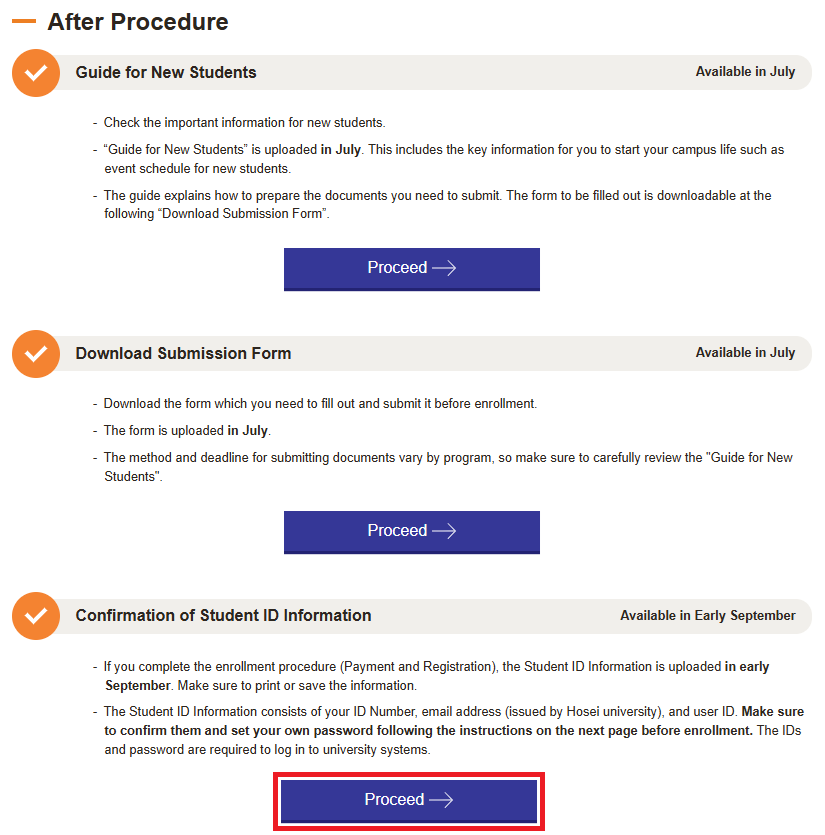
(Step2) Proceed "Confirmation of Student ID Information" on the bottom.
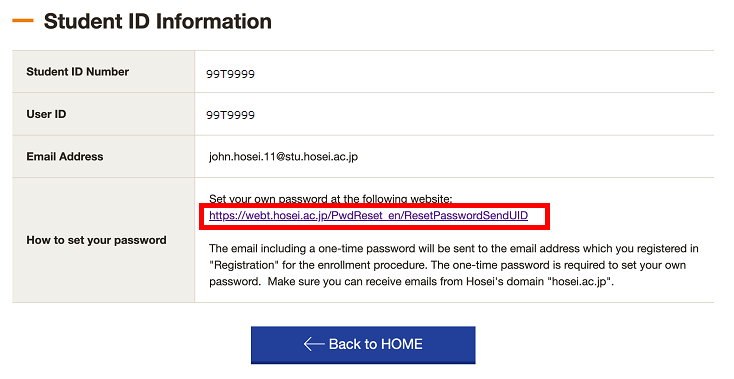
(Step3) Access to the following link on "How to set your password".
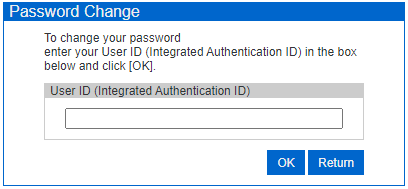
(Step4) Enter your User ID (Integrated Authentication ID) in the "User ID (Integrated Authentication
ID)" entry field on the "Password Change" screen and click OK.
※Your User ID (Integrated
Authentication ID) can be confirmed on the "Confirmation of Student ID Information" screen.
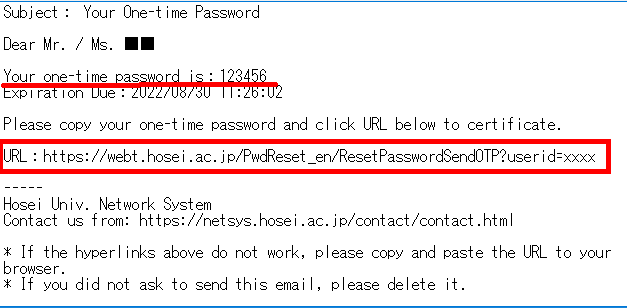
(Step5)The e-mail including a one-time password will be sent to the e-mail address you registered for
the enrollment procedure. And click on the URL in that e-mail.
※If you cannot receive the one-time
password, please come to the Computing and Networking Center Office at each
campus with your student ID card.
※If the URL does not open properly when clicked, copy the URL in
the body of the e-mail and paste it into the address bar of your Web browser.
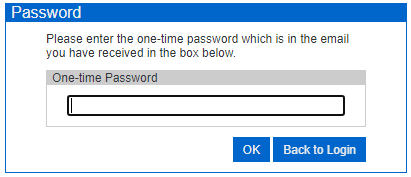
(Step6)On the "Password" screen, enter the one-time password obtained in (step5) in the "One-time Password" field and click OK.
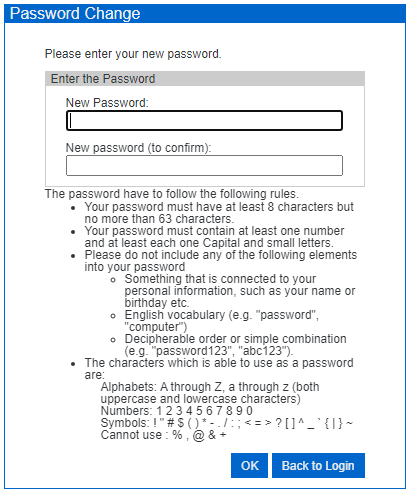
(Step7)On the "Password Change" screen, set your own password and click OK.
The password
requirements are the following:
・Your password must have at least 8 characters but no more than
63 characters.
・Your password must contain at least one uppercase letter (A to Z) , one lowercase
letter (a to z), and one numeric character (0-9) .
・The allowed special characters are ! “ # $ ( )
* - . / : ; < = > ? [ ] ^ _ ‘ { } | ~
・% , @ & + half-width space and full-width characters are
not allowed.
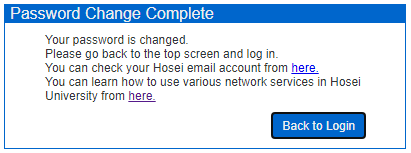
(Step8) When "Your password is changed." is displayed, the password setting is complete.
2.Computing and Networking Center Office at each campus
| For more information, please click here. (Only available in Japanese) | |||
| For more information, please click here. (Only available in Japanese) | |||
| For more information, please click here. (Only available in Japanese) | |||
| For more information, please click here. (Only available in Japanese) | |||
3.Contact Information
For inquiries about course registration, please contact your faculty office.
For inquiries about
setting your password, etc., please
click here.
July 07, 2025 Computing and Networking Center