
【Students graduating from Hosei University and entering Hosei University Graduate School in fall 2026】How to set a password for a new user ID (Integrated Authentication ID) after admission
Students from Hosei University who will enter Hosei University Graduate School in September 2026 (hereinafter referred to as “internal students※”) will be given a new user ID (Integrated Authentication ID) after entering the graduate school.
Please refer to the following procedures to set up a password for your new user ID (Integrated Authentication ID) and to register your e-mail address for password reissue.
(※) “Internal students” are defined as those who will graduate or complete their undergraduate studies or graduate studies at Hosei University in September 2026 and enter the master’s or doctoral program at Hosei University’s graduate school in September 2026.
User ID (Integrated Authentication ID) before graduation for internal students will no longer be available in September 30, 2026.
If you do not complete the following procedures, you will not be able to use various services such as course registration that require login with your new user ID (Integrated Authentication ID) after admission.
Internal students must complete the procedures listed on this page by [before the start of the course registration period].
*The screen layout and registration process are subject to change in the future.
1.How set up a password for a new user ID (Integrated Authentication ID) after admission
The password for new user ID (Integrated Authentication ID) after admission for internal students will be issued according to the following procedure.
If you have graduated from another university and entered Hosei University Graduate School, you cannot set your password according to this procedure.
Please receive the “Integrated Authentication Account User ID Notification Letter” at your graduate school counter.
(Step1) Access the password change page from the following URL
URL:https://idmnt.hosei.ac.jp/webmtn/LoginServlet
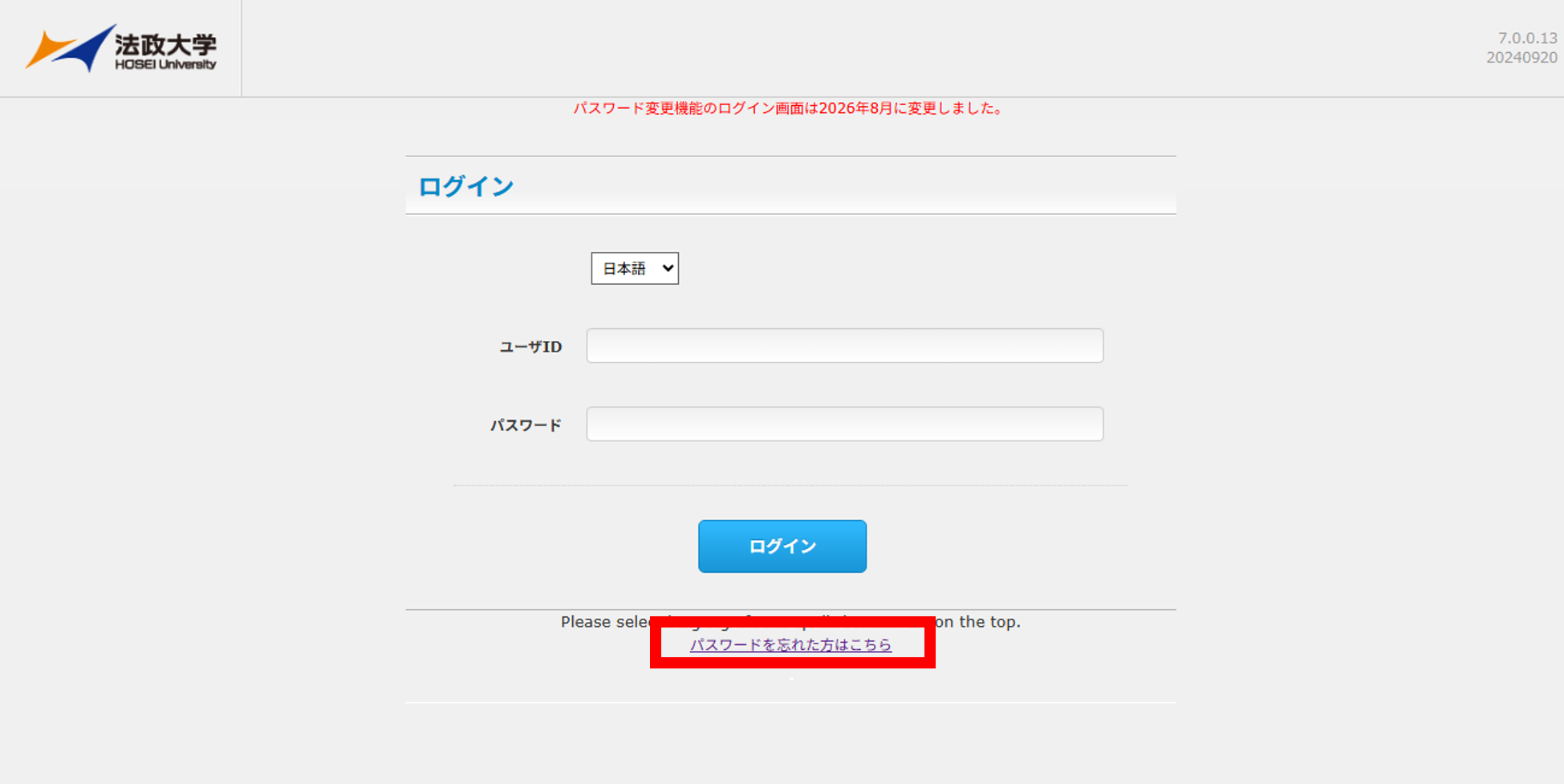
(Step2) Click “if you have forgotten your password. “ at the bottom of the login screen.
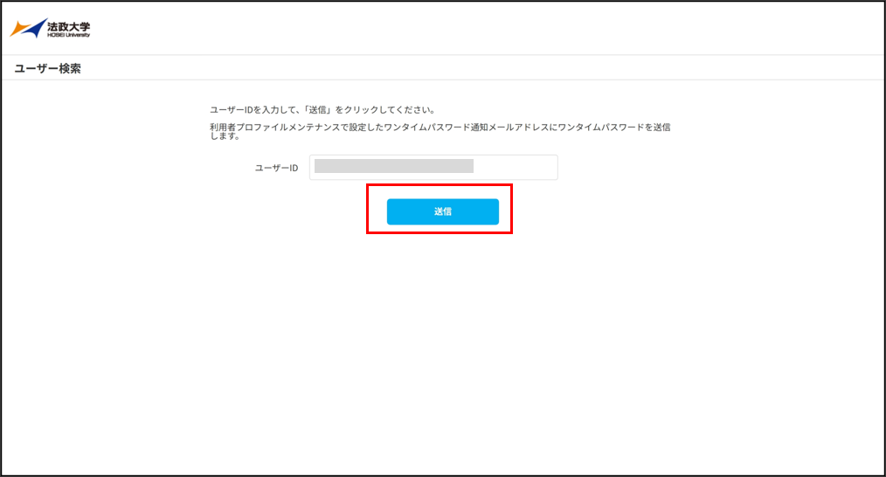
(Step3) Enter “new user ID (Integrated Authentication ID) after admission” in the “User ID (Integrated Authentication ID)”
field on the password reset screen and click “send”.
The new user ID (Integrated Authentication ID) after admission is the lower-case alphabet of the new student ID number after admission.
(For example, if your new student ID number after admission is 99H9999, your new user ID (Integrated Authentication ID) is 99h9999.)
(Step4) An email with your one-time password will be sent to your Hosei University Gmail address.
Please log in to your Hosei University Gmail account and access the URL provided in the one-time password email.
URL:https://gmail.hosei.ac.jp/
Subject: 【法政大学・全学ネットワークシステムより】セルフパスワードリセットのワンタイムパスワード * [From Hosei University / University-wide Network System] One-time password for self-service password reset
※Internal students can log in to Hosei University Gmail with their user ID (Integrated Authentication ID) and password before graduation until September 30, 2026.
※ If the URL does not open correctly when clicked, please copy the URL from the body of the email and paste it into the address bar of your web browser to access the site.
The password cannot be issued in the following cases.
You cannot receive the one-time password.
Cannot log in to Hosei University Gmail with your user ID (Integrated Authentication ID) before graduation.
After receiving your new student ID card after admission, please inquire at the General Computing and Networking Center Office on each campus with your new student ID card.
Click here for Ichigaya (liberal arts students) (Only available in Japanese)
Click here for Tama (Only available in Japanese)
Click here for Koganei and Ichigaya (Faculty of Engineering and Design) (Only available in Japanese)
※You must have a new student ID card after admission to the university for identification purposes. If you forget your new student ID card or before you receive it, you will not be able to get a password reissued at the Computing and Networking Center Office.

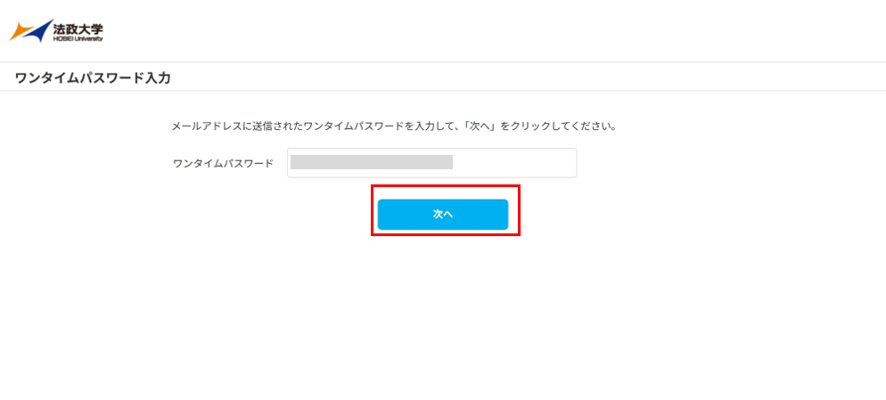
(Step5) Enter the one-time password from (Step 4) in the “One-time Password” field on the Password Entry screen and click “next”.
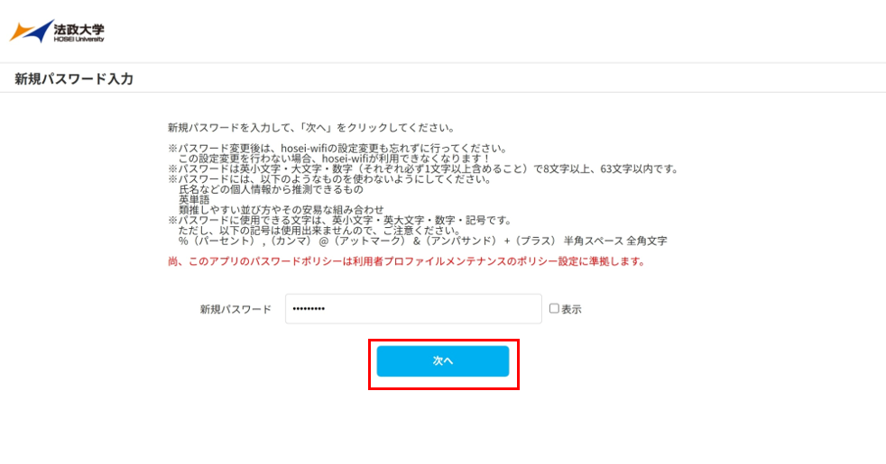
(Step6) On the Password Reset screen, enter your password according to the following password rules in the “New Password” field and click “next”.
Hosei University’s password rules are as follows.
Your password must contain at least 8 lowercase letters, uppercase letters, and numbers (each of which must contain at least 1 character), and must be no more than 63 characters long.
The password can contain lowercase and uppercase letters, numbers, and symbols.
However, please note that the following symbols cannot be used.
% (percent) , (comma) @ (atmark) & (ampersand) + (plus) half-width space, full-width characters
(Step7) If the new password is successfully set, the password setting completion screen will be displayed.
Click the [X] button at the top right of the browser screen to close the screen.
after admission is complete.
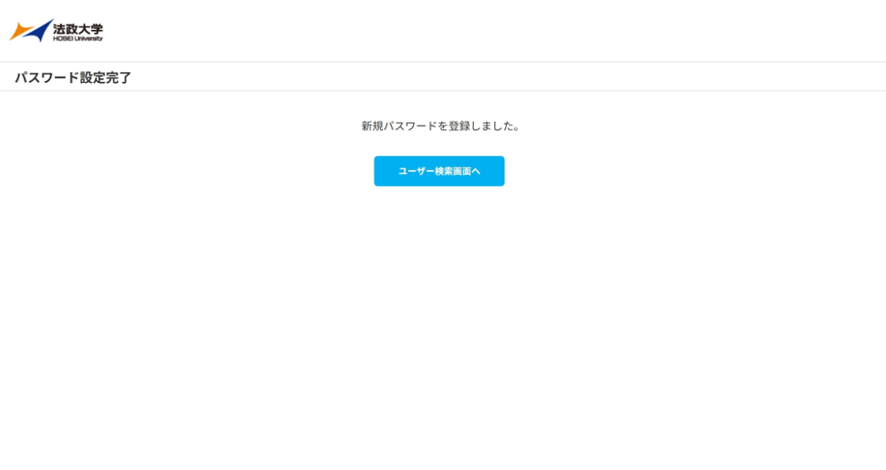
(Step8) Clicking this link will display the login screen for the Hosei University-specific Gmail account.
Please confirm that you can log in to Hosei University Gmail using your new user ID (Integrated Authentication ID) after admission and the password you set in (Step 6).
If you can log in to Hosei University Gmail, there is no problem with your password setting. Close the window that opens and go on to “2. How to register an e-mail address for password reissue associated with a new user ID (Integrated Authentication ID) after admission”.
If you are unable to log in, please go back to “Step 1” of “1. How set up a password for a new user ID (Integrated Authentication ID) after admission” to set your password again.
2.How to register an e-mail address for password reissue associated with a new user ID (Integrated Authentication ID) after admission
Internal students will not be able to use their user ID (Integrated Authentication ID) before they graduate in September 30, 2026. If you do not follow this procedure, you will not be able to reset your self-password in case you lose your password.
Therefore, it is necessary to register a private email address other than the Hosei University Gmail address (@stu.hosei.ac.jp) as the email address for password re-issue.
Please be sure to register an e-mail address for password reissue after you have set up your new user ID (Integrated Authentication ID) after admission password.
You can change your e-mail address for password reissue as many times as you like by following the procedure below.
(Step1) Access the password change screen from the following URL
URL:https://idmnt.hosei.ac.jp/webmtn/LoginServlet
(Step2) The login screen is displayed.
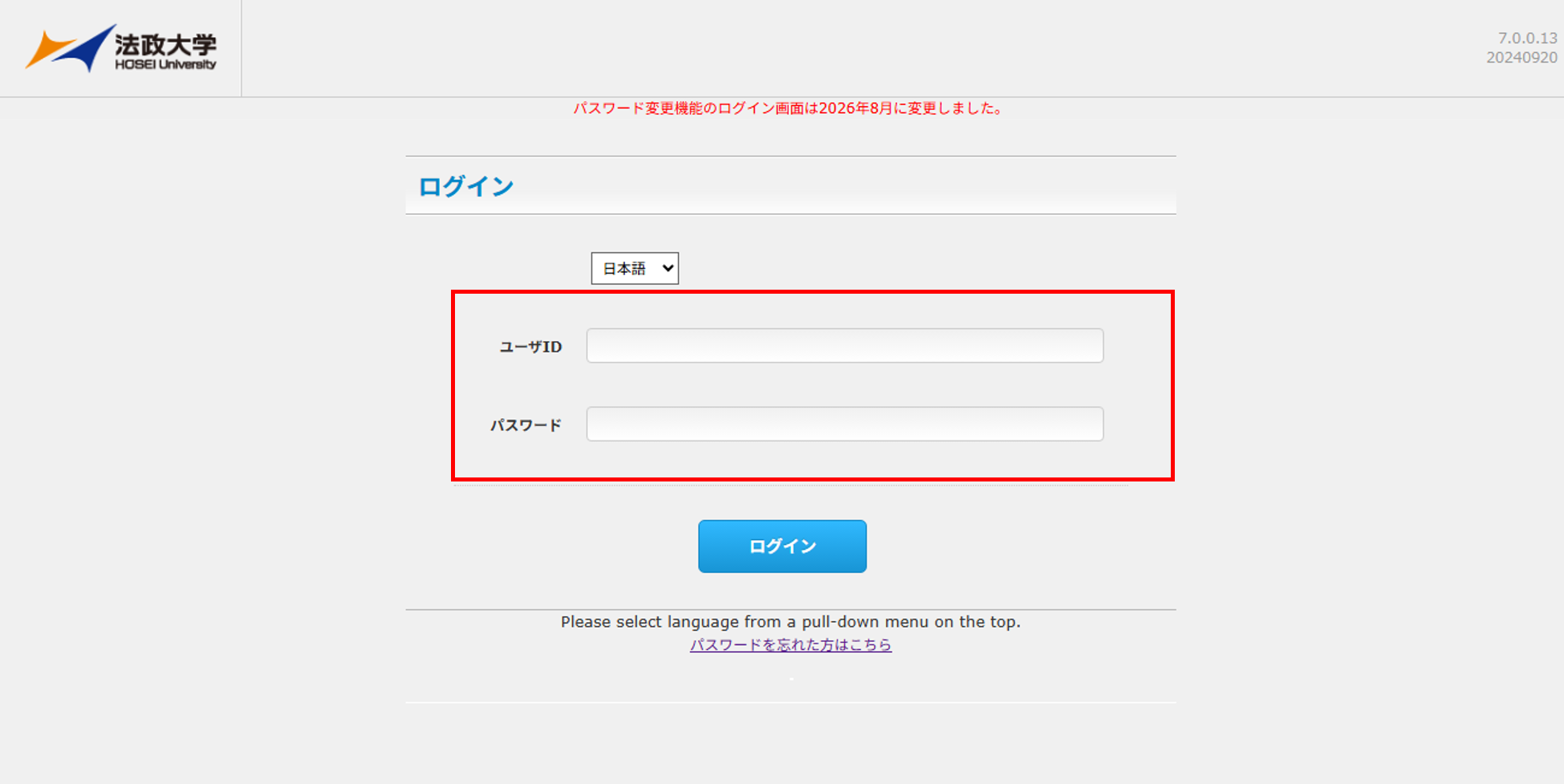
(Step3) Enter your ” ID” and “Password,” then click “Login.”
“User ID” entry field: New user ID (Integrated Authentication ID) after admission
“Password” entry field: Password set in “1.How set up a password for a new user ID (Integrated Authentication ID) after admission”.
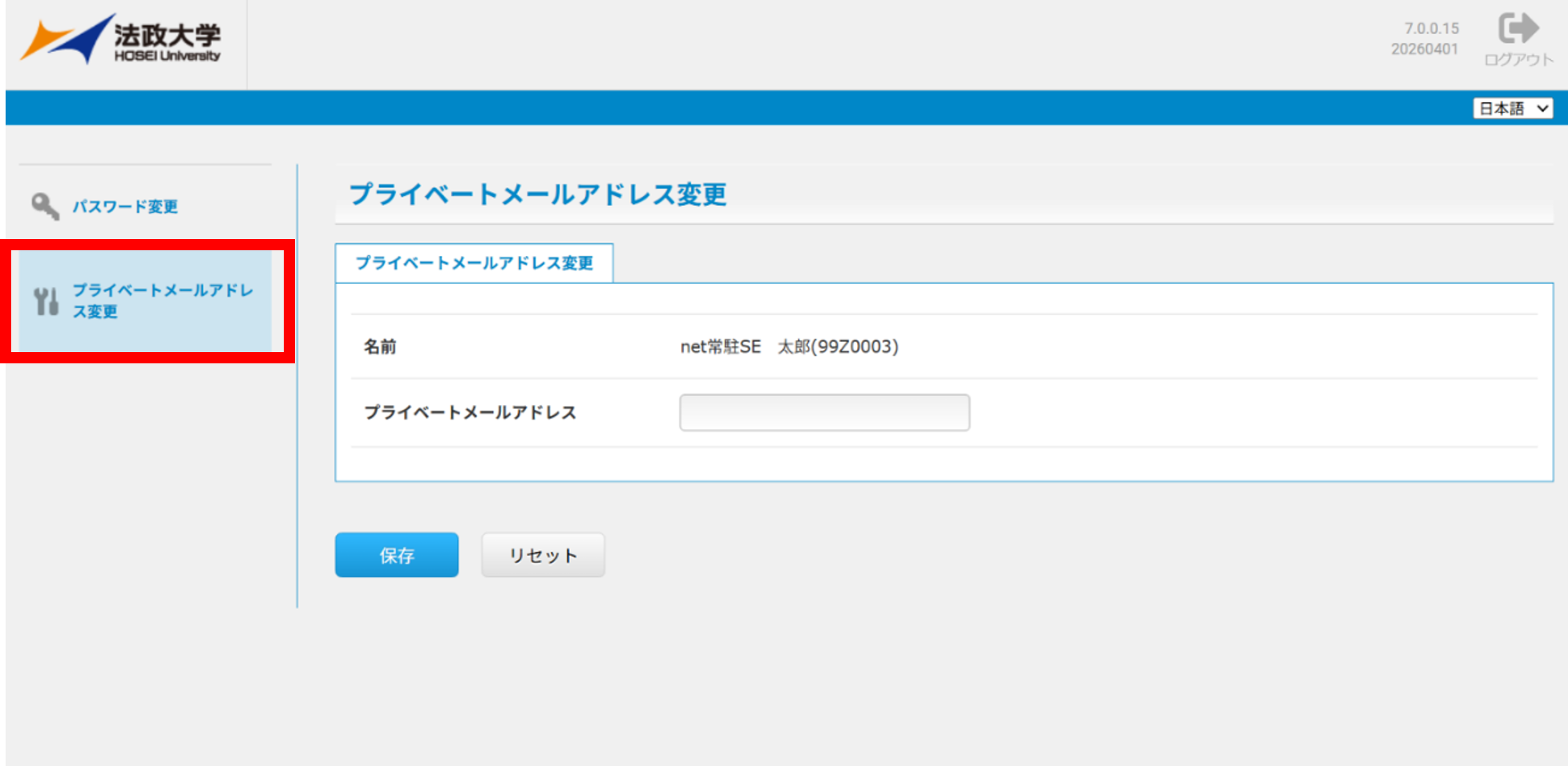
(Step4) Click “Change Private Email Address” from the left-hand menu.
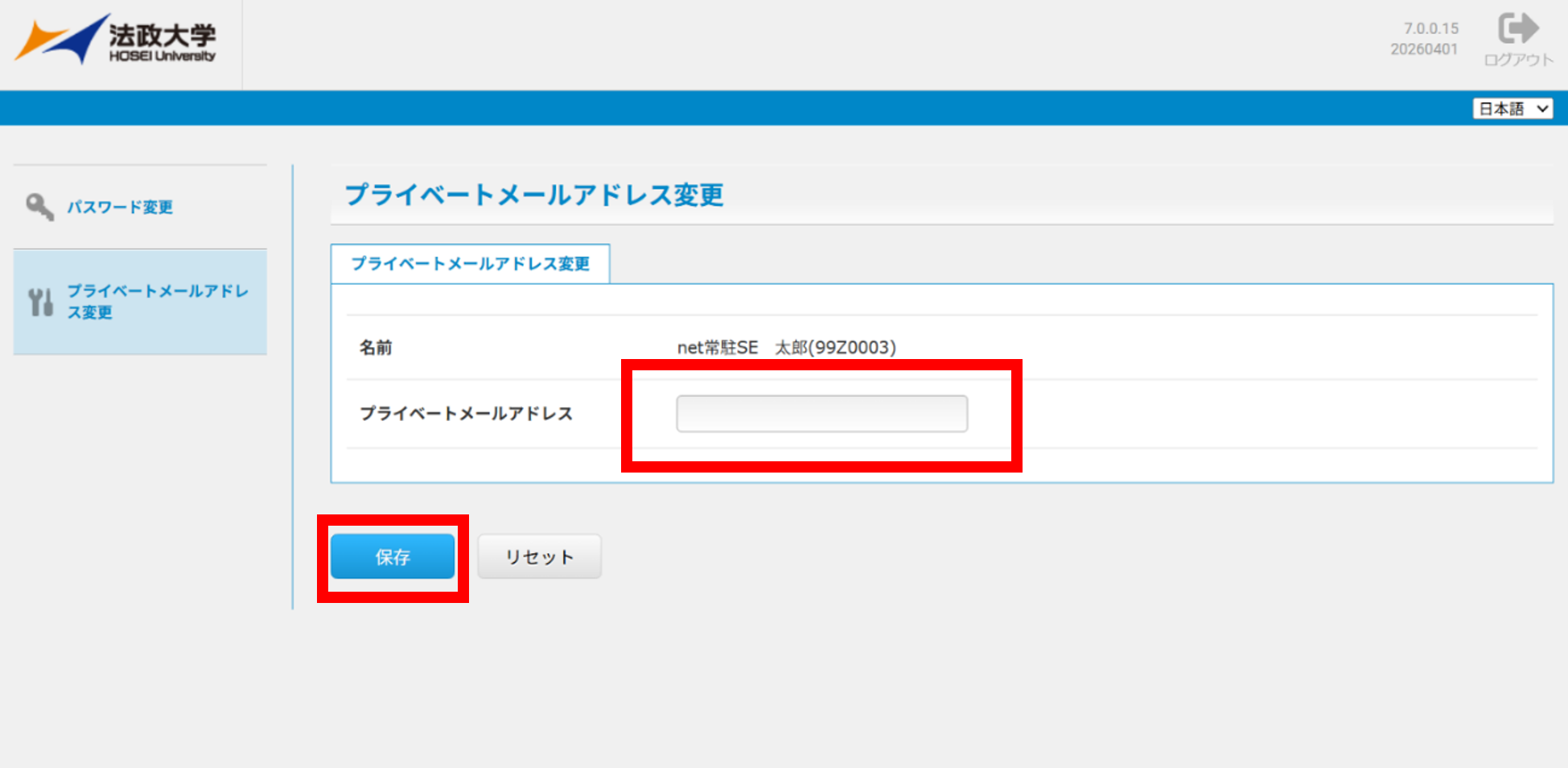
(Step5) Enter the new email address and click “Save”.
(Step6) A confirmation screen will appear.
Double-check the new private email address for errors, then click the OK button.
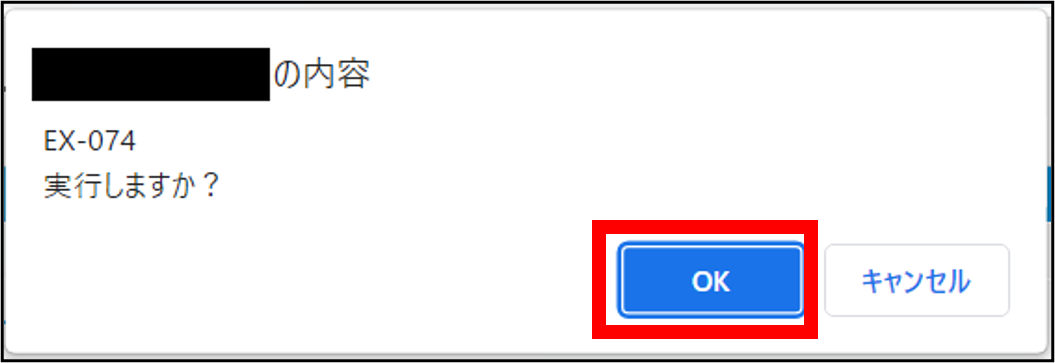
(Step7) After clicking the OK button, the following message will be displayed.
Please wait until the change process is complete.

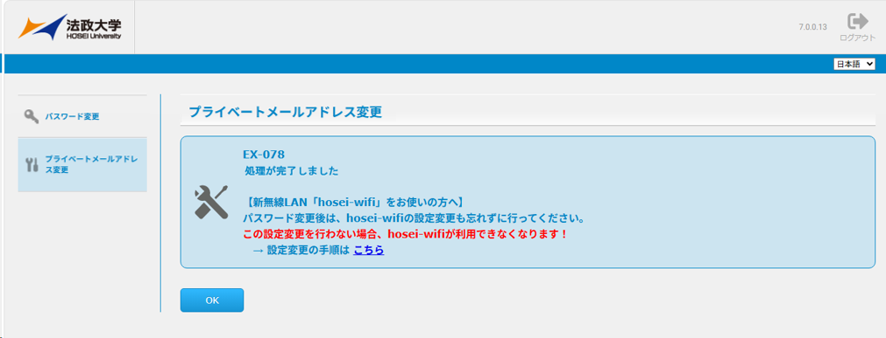
(Step8) Once the password has been successfully changed, the message “EX-078 Processing completed.” will be displayed.
3. Computing and Networking Center Office at each campus
| Campus | Building | Room Name | Business Hours |
|---|---|---|---|
| Ichigaya Campus | 2F Fujimizaka Building | Jōhō Cafeteria | For more information, please click here .(Only available in Japanese) |
| Ichigaya Campus(Ichigaya Tamachi) | 3F Ichigaya Tamachi Building | edu Support Room | For more information, please click here. (Only available in Japanese) |
| Tama Campus | 3F All-Purpose Building | Tama Computing and Networking Center Office | For more information, please click here. (Only available in Japanese) |
| Koganei Campus | 4F Administrative Building | Koganei Computing and Networking Center Office | For more information, please click here. (Only available in Japanese) |
4. Contact Information
For inquiries about course registration, please contact your faculty office.
For inquiries about setting a password, registering an e-mail address, etc., please click here.